A hardware wallet asks you to trust what you can’t see inside it. If its random number generator is weak, your seed can be guessed. If it’s tampered with before it reaches you, a hidden radio can send your recovery words out while the device still looks genuine.
Seed-Signer mode in Cypher Box is another way to do cold storage: a spare Android phone that stays offline for good signs for a watch-only wallet on your everyday phone, and you can check its work along the way. This guide takes you from a factory-reset phone to your first signed payment, with the exact buttons to tap, in the same order as our video. Cypher Box is free and open source.
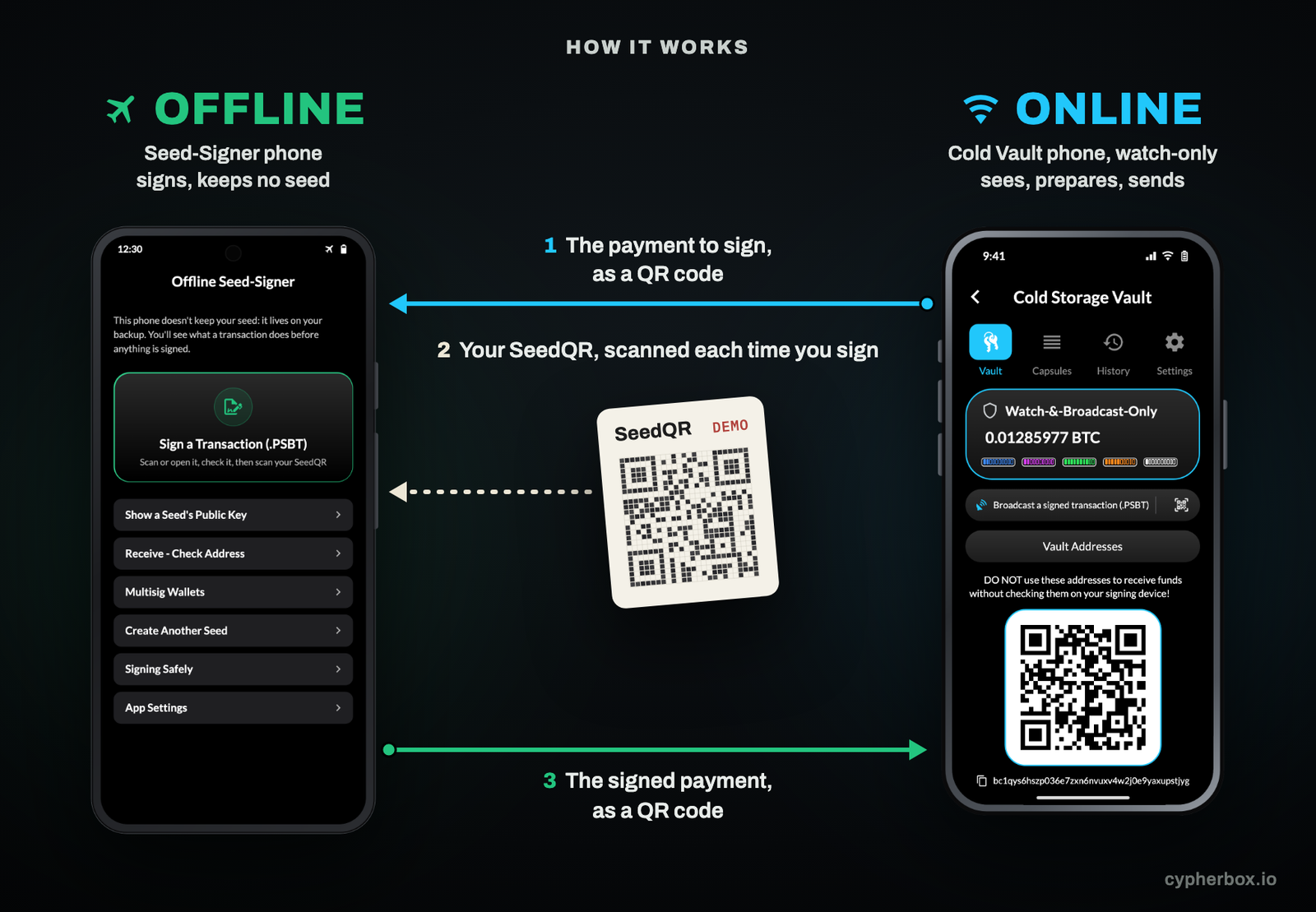
How it works
You use two phones. The offline phone is the signer: it makes your seed, shows you what a payment does, and signs it, and it never goes online. The online phone holds a watch-only Cold Vault: it sees your balance and prepares payments, but it can’t spend. The two only talk through QR codes. The online phone shows a payment to sign, the signer scans it, and the online phone scans the signed payment back and sends it.
The signer is stateless. It never saves your seed: the seed lives on paper, as 12 words and as a SeedQR, and you scan the SeedQR each time you sign, so the seed is in the phone’s memory only while it signs. A thief who steals the signer finds no seed and no private key on it, so there’s nothing to spend with. Still, if your signer is ever lost or stolen, it’s best to move your coins to a new seed.
It works with a single key, or as one key of a multisig wallet in Sparrow or Nunchuk.
Why a spare phone instead of a hardware wallet
A hardware wallet is a closed box. You can’t easily see how it makes your seed, and you can’t tell whether it was opened on its way to you. Seed-Signer mode takes both questions off the table: your seed comes from dice you roll yourself, the signer keeps nothing secret, and a separate open-source tool can redo its work and check it.
A spare phone makes you harder to find
Buying a hardware wallet leaves a trail that says you hold bitcoin. Your name, home address, email and phone number go into a shop’s customer list, into a card payment and into a courier’s records, and a box with the maker’s name on it arrives at your door. A list of hardware wallet buyers is a list of people who hold bitcoin, with their home addresses. If it leaks, or someone inside sells it, everyone on it becomes a target for phishing, fake replacement devices and worse.
A spare Android phone says nothing about bitcoin. Billions of people use one, many have an old one in a drawer, and you can buy a used one with cash in any phone shop. No shop, courier or database learns that you’re about to store bitcoin.
It’s also much harder to tamper with in advance. Someone who wants to plant a hidden radio in a hardware wallet knows exactly which model to buy, open and resell, and which packages to watch for. Nobody can know which of thousands of phone models, from which shop, will become your signer, and the factory reset and the maker’s own updates replace the software that runs on it.
At home or on the road, a phone looks like a phone, while a hardware wallet looks like what it is. Even someone who knows what your signer is finds no seed on it.
Two things stay visible: your coins on the blockchain, and your online phone. That’s why this guide connects the online phone to your own node before it loads anything, so no public server learns your addresses and balance. Your paper backup is now the thing to hide, so keep it as carefully as you’d keep the coins themselves.
What you need
- A spare Android phone with a working camera. It stays offline for good, so pick one you won’t want back.
- Your everyday phone with the latest Cypher Box. This is the online phone. On an iPhone, that means our TestFlight beta until the App Store has the update.
- A real six-sided die, a pen and paper.
- A SeedQR template (a printed grid of 25 by 25 squares) or a steel plate.
- A copy of EntropyLab, the free checking tool. Step 5 explains where to get it.
- Ideally, your own Bitcoin node with an Electrum server, so your balance stays private. Step 6 connects it.
- About an hour. Copying the SeedQR by hand takes about 20 minutes of it.
Step 1: Prepare the offline phone
Factory-reset the spare phone. Connect it to the internet one last time to install every system update and Cypher Box, either from Google Play or as the APK from our GitHub releases page; how to check either one is further down, under Check that your app is the real one. Save your copy of EntropyLab on it as well (step 5). Then turn on Airplane Mode, make sure Wi-Fi and Bluetooth are off too, and leave them that way for good.
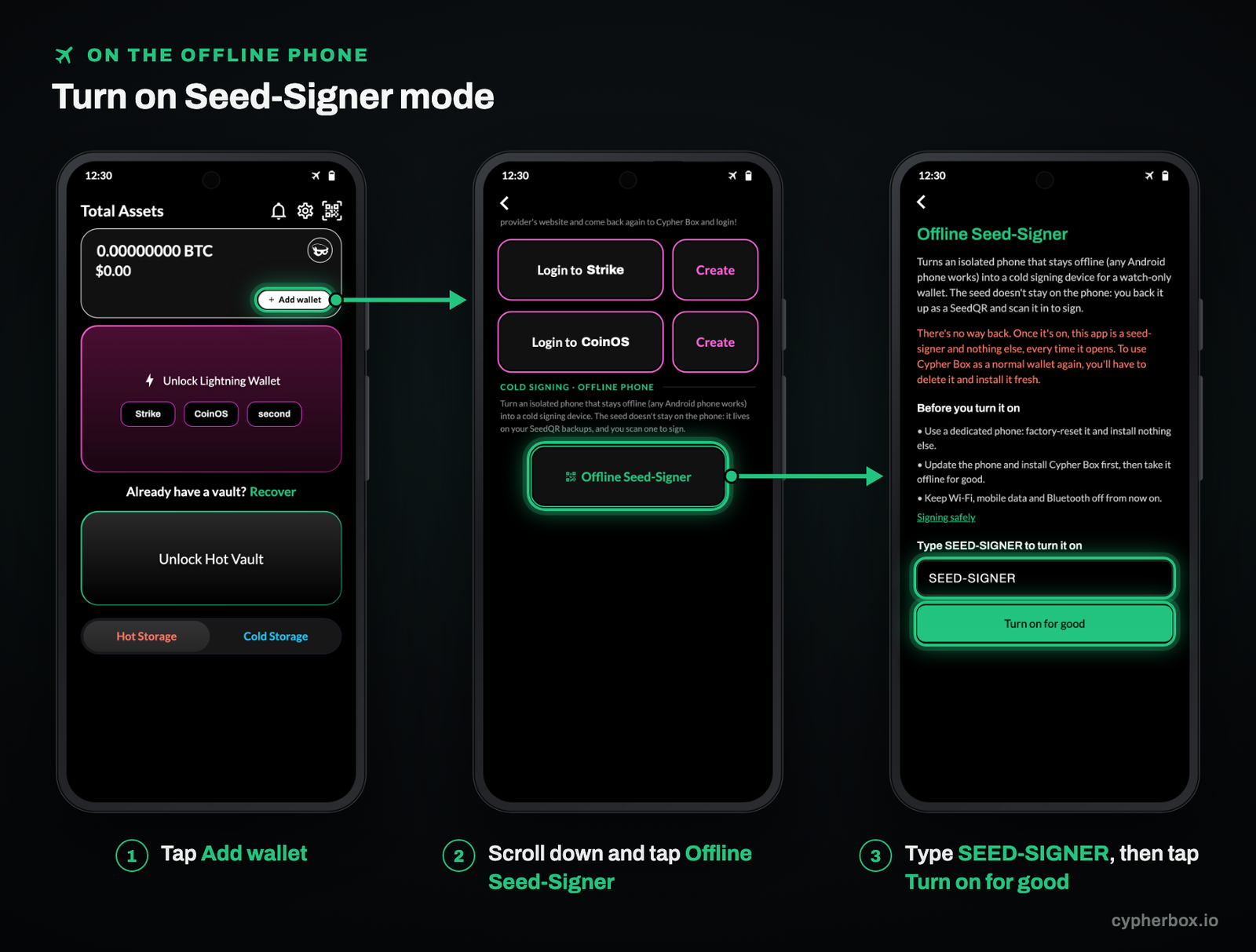
Now open Cypher Box, tap Add wallet, scroll down and tap Offline Seed-Signer, the green option at the bottom. Read the screen, type SEED-SIGNER and tap Turn on for good. The app only lets you do this on a fresh install with the phone offline. There’s no way back: from now on, this app is a signer and nothing else, and to use Cypher Box as a normal wallet on that phone again you’d have to delete it and install it fresh.
For power users: no internet and no radios at all
You can keep the phone off the internet from the very first minute. Install system updates from a computer over a USB cable, with the phone maker’s own computer tool or from the phone’s recovery mode: the phone checks the maker’s signature before it installs anything, so the cable can’t alter the update. Bring Cypher Box (the APK from GitHub) and EntropyLab over on an SD card or a USB stick, and check each file before you install or open it. Many phones, Pixels included, have no SD slot, and a USB-C stick does the same job. Leave Bluetooth and Wi-Fi out of it: they’re radios you’re keeping off for good.
You can also take the radios out. Remove the SIM, unplug the antennas and the NFC coil, and, with micro-soldering, lift off the Wi-Fi, Bluetooth and cellular chips. Keep the camera and the screen, because the signer needs them. This is optional, it can break the phone, and a damaged battery can catch fire.
Step 2: Make your seed from dice
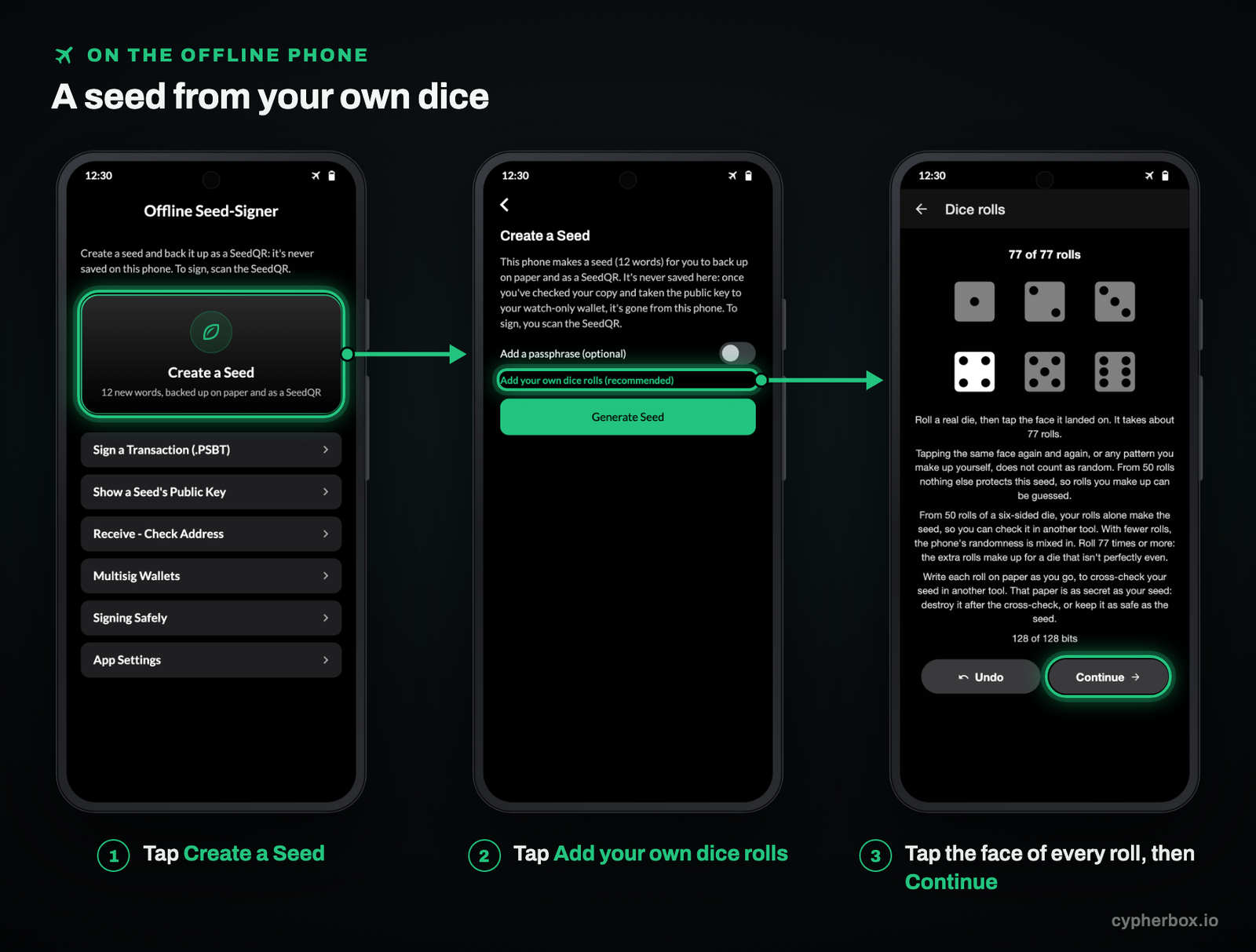
On the signer’s home screen, tap Create a Seed, then Add your own dice rolls. Roll a real die, tap the face that lands, and write every roll on paper as you go. The screen counts your rolls.
From 50 rolls of a six-sided die, your rolls alone make the seed. The app takes the SHA-256 of the digits you rolled, the same method SeedSigner and COLDCARD use, so any tool that follows it gives the same 12 words from the same rolls. The phone’s random number generator isn’t used at all, so a weakness in it can’t weaken your seed. The app recommends 77 rolls or more, which leaves a margin for a die that isn’t perfectly even. With fewer than 50 rolls, or rolls that follow a pattern, it mixes them with the phone’s own randomness instead and tells you so; the seed is then fine, but your rolls alone can no longer prove where it came from.
When you’re done, tap Continue. Back on Create a Seed, the app confirms that your rolls alone make the seed.
Step 3: Add a passphrase, if you want one
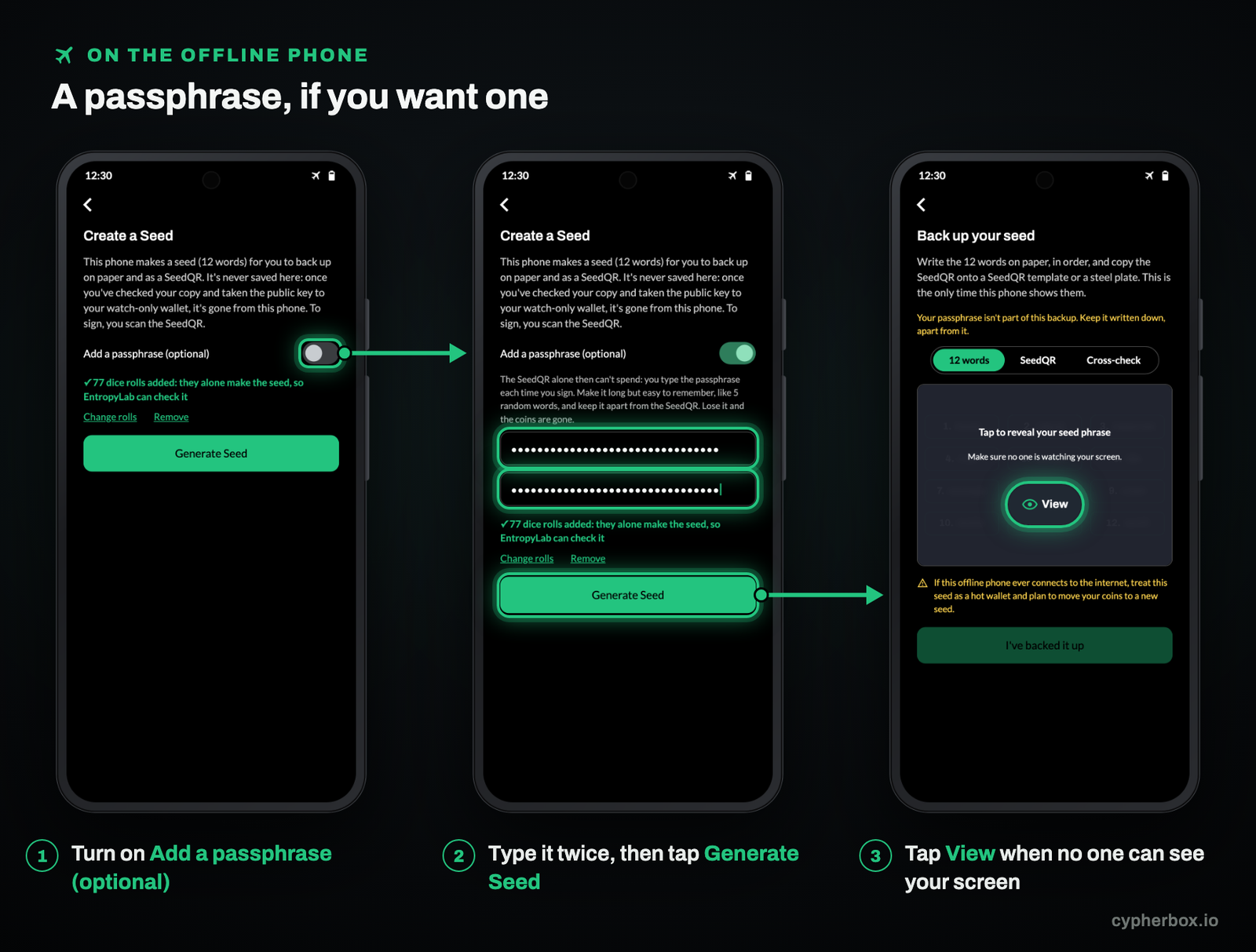
A passphrase is an extra phrase that turns your 12 words into a different wallet. With one, the SeedQR alone can’t spend: you type the passphrase each time you sign. Make it long but easy to remember, like five random words, write it down, and keep it apart from the SeedQR. If you lose it, the coins are gone. The signer doesn’t keep it either.
To add one, turn on Add a passphrase (optional) on Create a Seed, type it twice and tap Generate Seed. Without a passphrase, just tap Generate Seed.
Step 4: Back it up, then check your copy
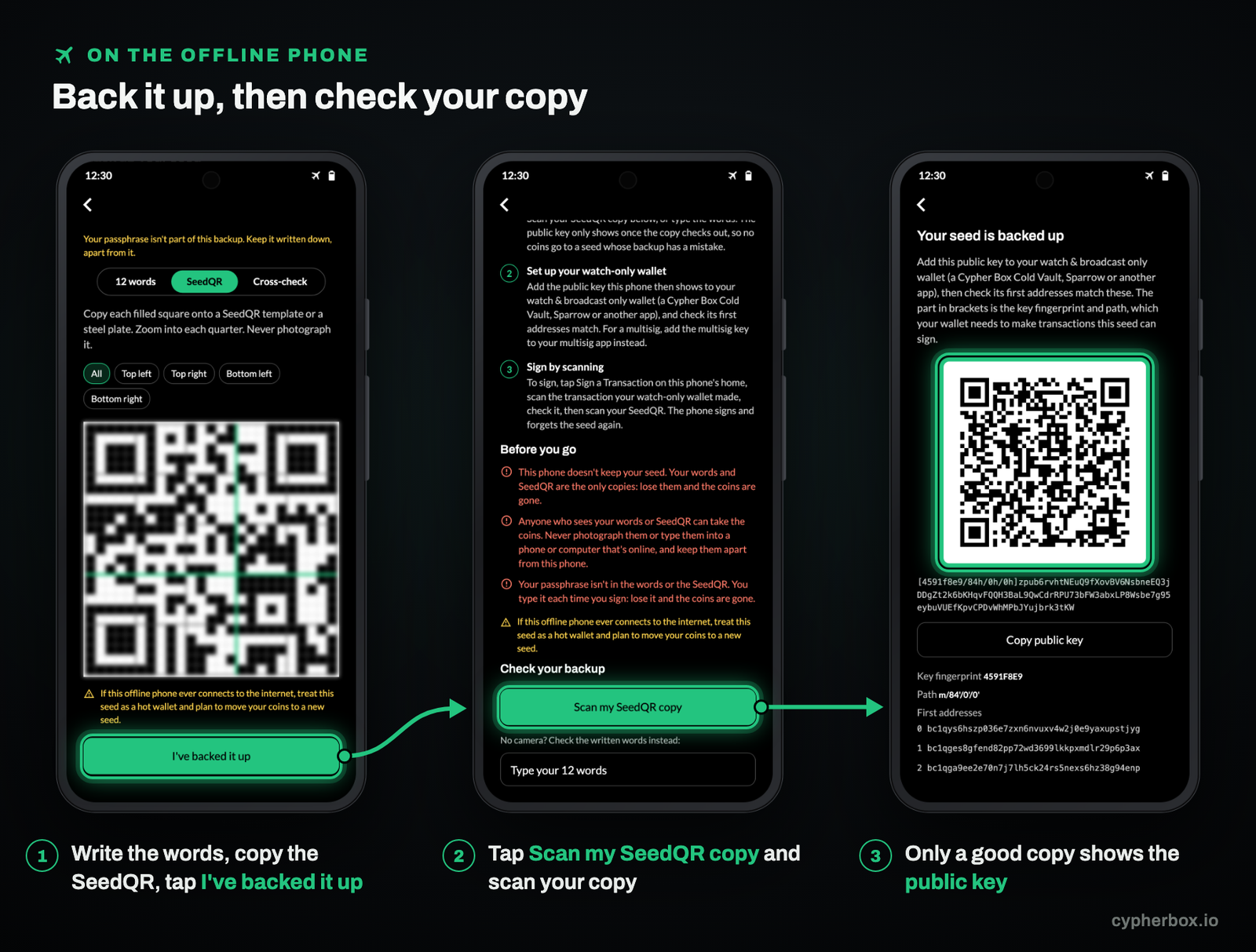
The phone shows your 12 words only this once. Tap View when no one can see your screen, and write the words on paper, in order. Then open the SeedQR tab and copy each filled square onto a SeedQR template or a steel plate. The app lets you zoom into each quarter, and it takes about 20 minutes. Never photograph the words or the SeedQR, and never type them into anything that’s online.
Tap I’ve backed it up, then Scan my SeedQR copy, and scan the copy you just made. The phone shows the seed’s public key only once your copy checks out, so no coins can go to a seed whose backup has a mistake. When you leave this screen, the phone forgets the seed: from now on it lives only on your backup. The backup screen’s Cross-check tab also lists your rolls and the EntropyLab settings for the next step.
Step 5: Check the seed in EntropyLab
Now check the phone’s work. EntropyLab is a free, open-source Bitcoin key calculator: a single web page that works offline. Its Bitcoin code is written in Rust and runs as WebAssembly, while Cypher Box is a JavaScript app, so the two share no code. That makes it a true second opinion: from the same dice rolls it has to give the same seed and addresses, and later it can check the transactions you sign. A bug or a hidden trick in the signer would show.
Get entropylab.html from its official site, entropylab.online, or from its releases page on GitHub, and check the file against the SHA-256 checksum it publishes; EntropyLab’s own guide, Verify your download, shows how on Windows, Mac and Linux. The simplest way is to download and check it on a computer, then copy the file to the signer with a USB cable.
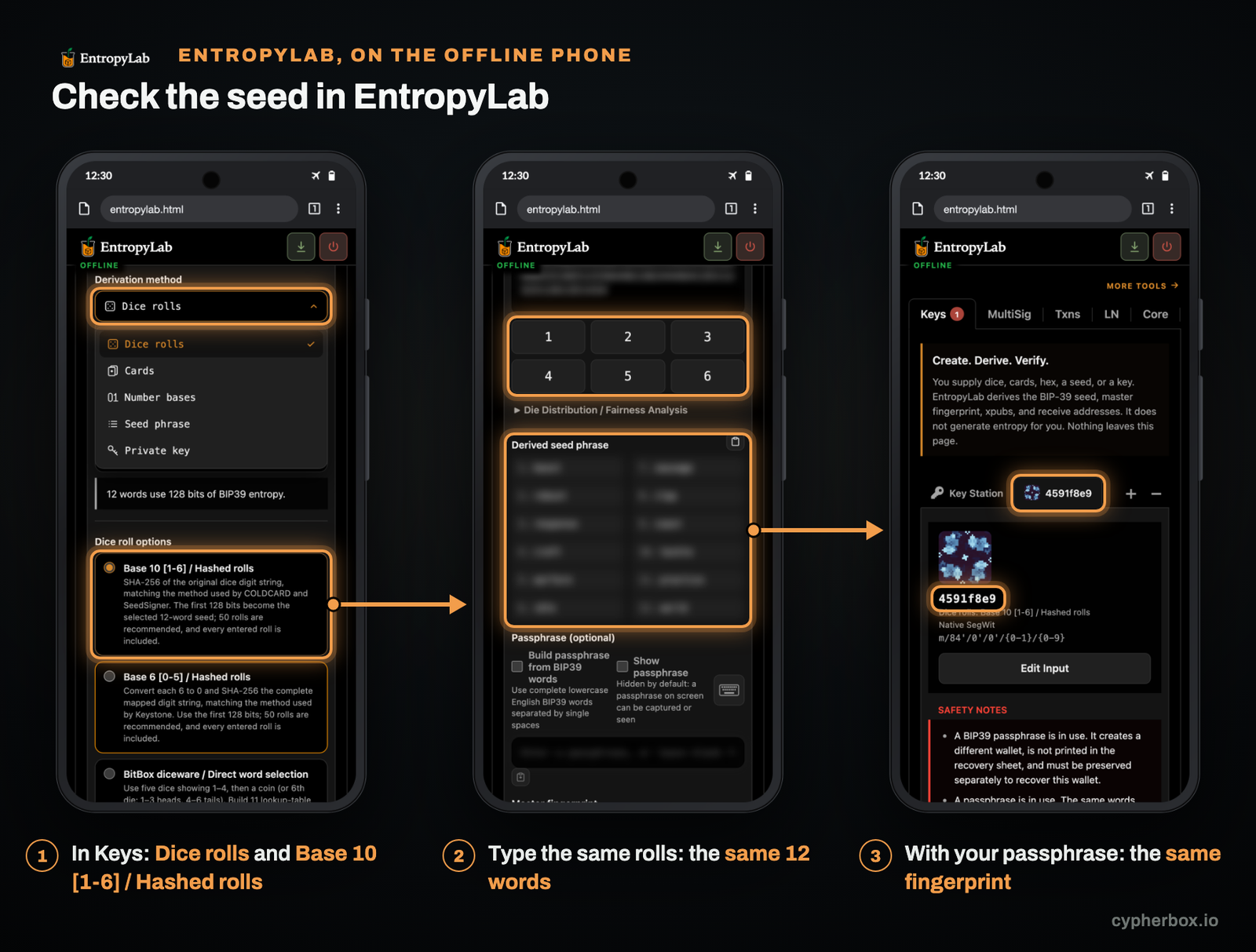
On the signer, open entropylab.html from the Files app in the browser. In Keys, choose Dice rolls and 12 words, and under Dice roll options pick Base 10 [1-6] / Hashed rolls. Type the same rolls from your paper, and the same 12 words appear. Add your passphrase if you use one and tap Derive Key: the master fingerprint and the first addresses match the ones the signer showed with your public key.
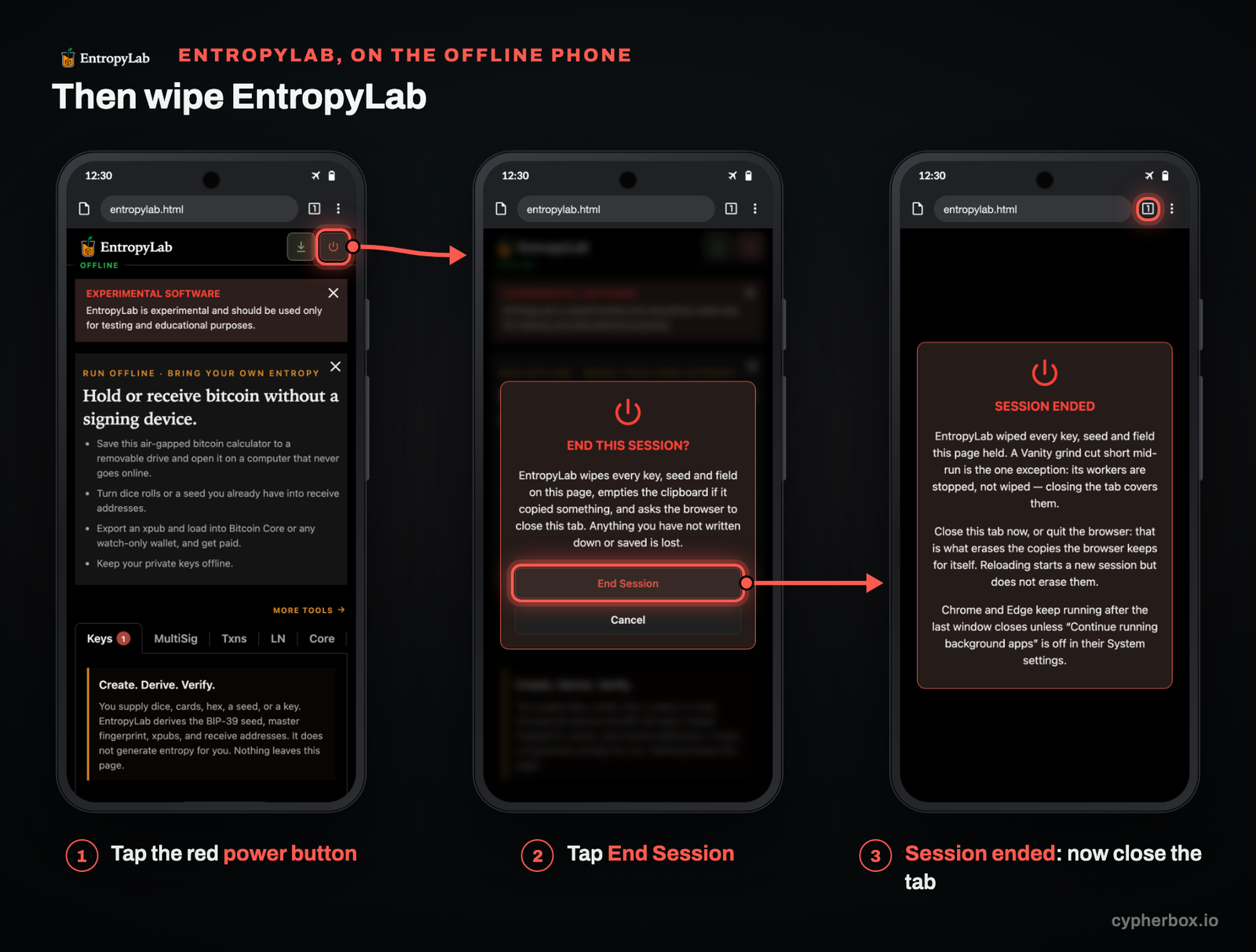
Then wipe EntropyLab. Tap the red power button at the top right, confirm with End Session, and close the tab. End Session wipes every key, seed and field on the page and empties the clipboard if it copied something. A phone’s browser won’t close a tab you opened yourself, so the page says Session ended and asks you to close it: closing the tab, or quitting the browser, is what erases the copies the browser keeps for itself.
Finally, destroy the paper with your rolls, or keep it as safe as your seed, because anyone with the rolls can rebuild the seed.
Step 6: Pair the online phone, your node first
Your online phone only needs the signer’s public key. In Cypher Box on the online phone, switch the home screen to Cold Storage, tap Unlock Cold Vault, then Explore Cold Storage and Connect Device.
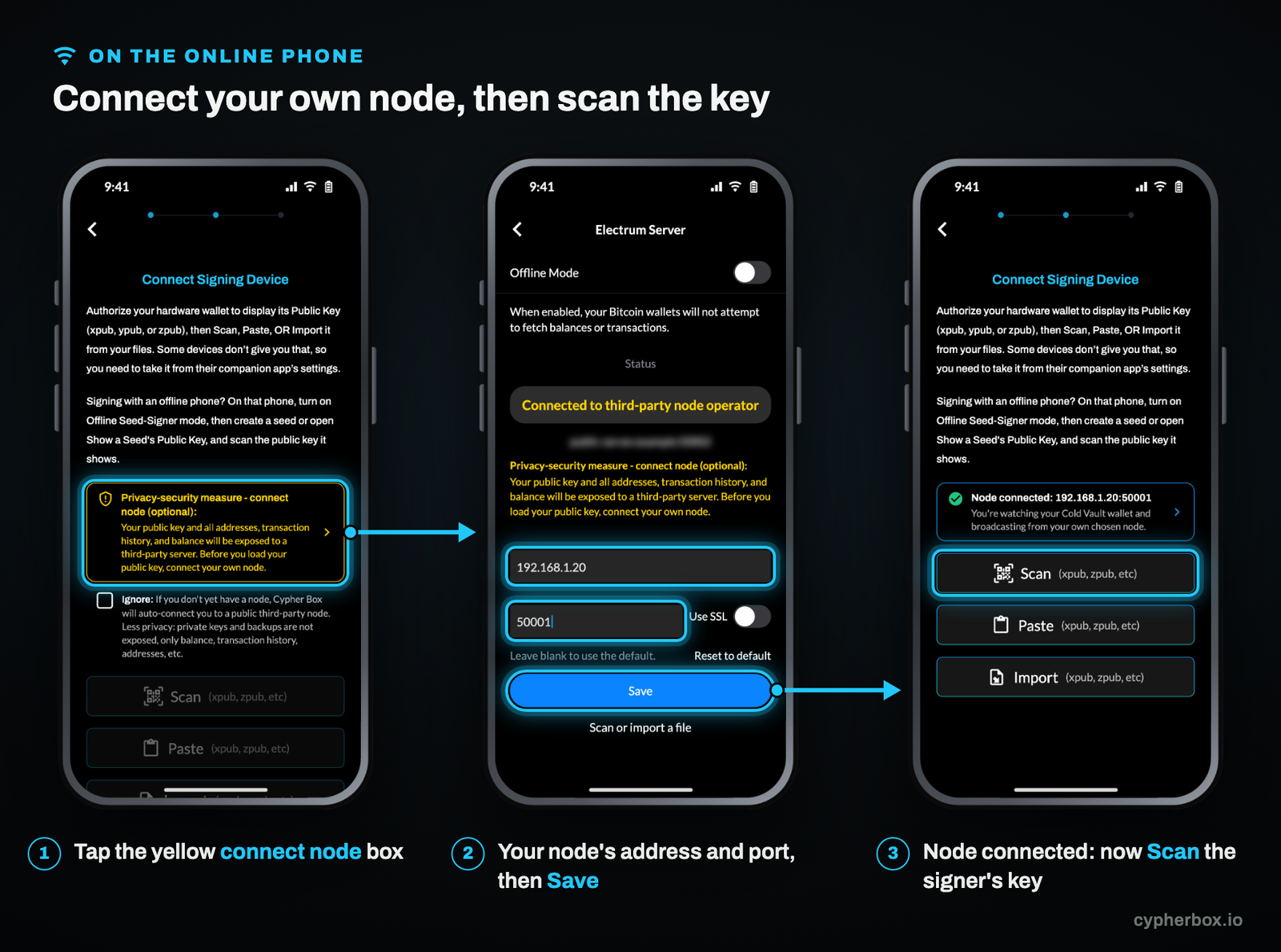
Before you scan anything, connect your own Bitcoin node. Without one, a public server sees every address, payment and balance in this vault as soon as the key is loaded, and adding a node later can’t undo that. Tap the yellow Privacy-security measure – connect node (optional) box, type your node’s address and port under Electrum Server (the port is usually 50001), and tap Save. Back on Connect Signing Device, the box turns blue and says Node connected. No node yet? You can tick Ignore, at the cost of that privacy.
Then tap Scan and scan the public key on the signer. If you’ve left that screen, tap Show a Seed’s Public Key on the signer and scan your SeedQR to bring it back. You now have a watch-only vault: check that its first address matches the first address the signer showed.
Check every receive address on the signer
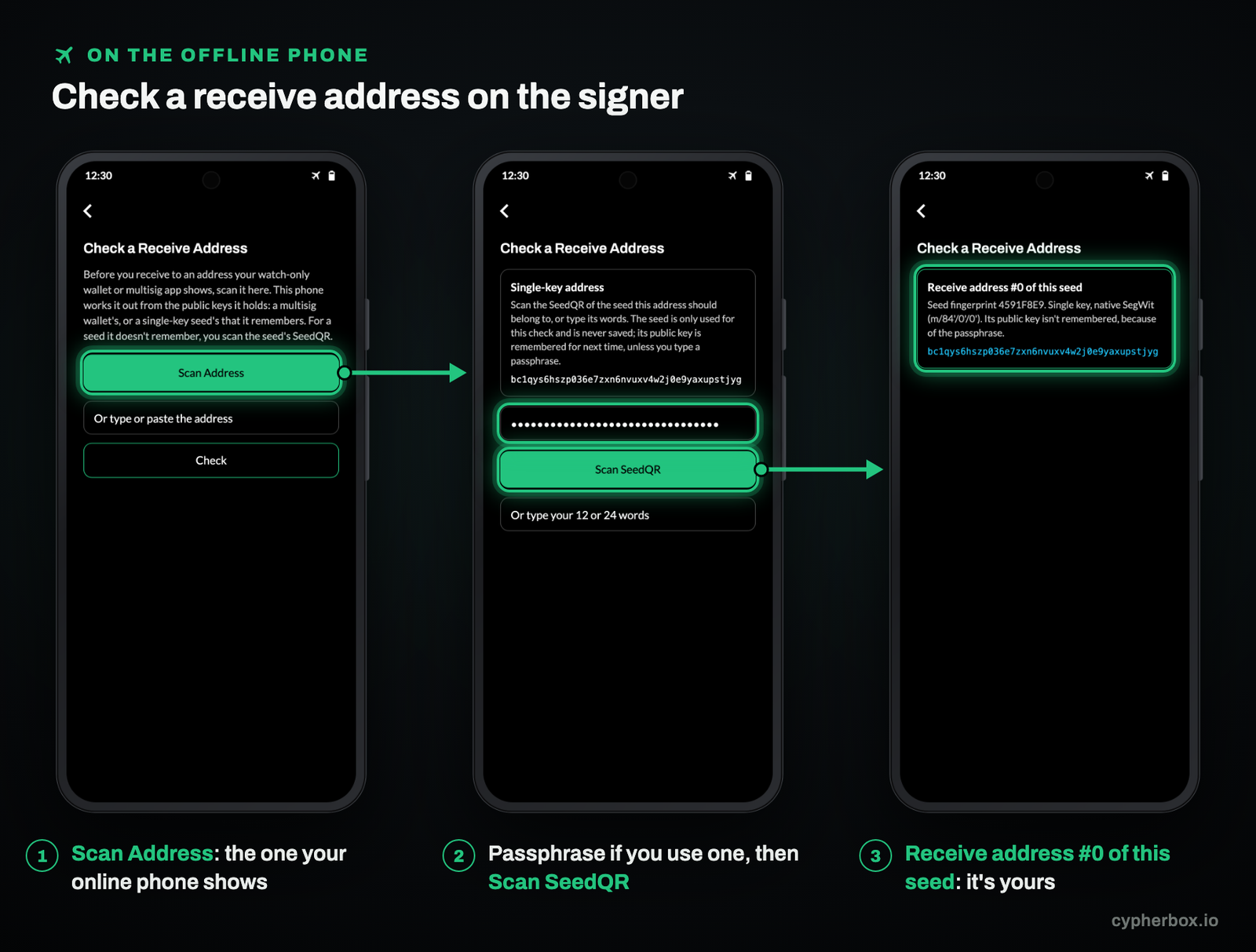
The online phone shows your next receive address on its Vault tab, with a warning not to use it before you check it on your signing device. To check it, tap Receive – Check Address on the signer, then Scan Address, and scan it. The first time, the signer asks for your passphrase, if you use one, and then Scan SeedQR. Without a passphrase it then remembers the public key, so later checks don’t need the SeedQR. If it says Receive address #0 of this seed (or another number), the address is yours. Start with a small amount.
Step 7: Spend
On the online phone, open the Cold Vault and go to Capsules. Tick the capsules (coins) you want to spend under Select, tap Send, paste the address you’re paying, check the amount and the network fee, and tap Next. The phone shows the payment as an animated QR code.
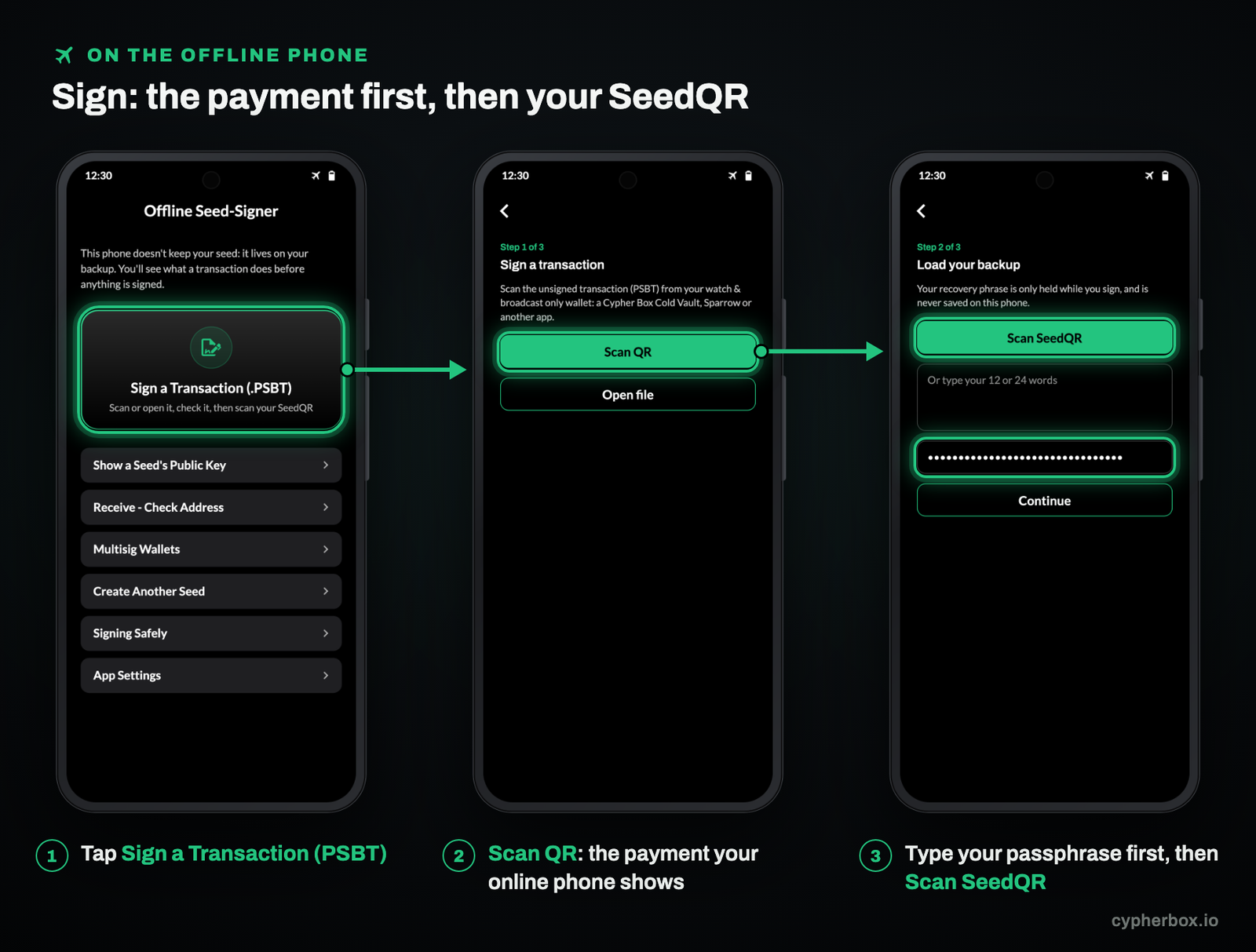
On the signer, tap Sign a Transaction (PSBT), then Scan QR, and scan that code. If you use a passphrase, type it first, then tap Scan SeedQR and scan your SeedQR: the signer reads the passphrase at the moment it scans the SeedQR.
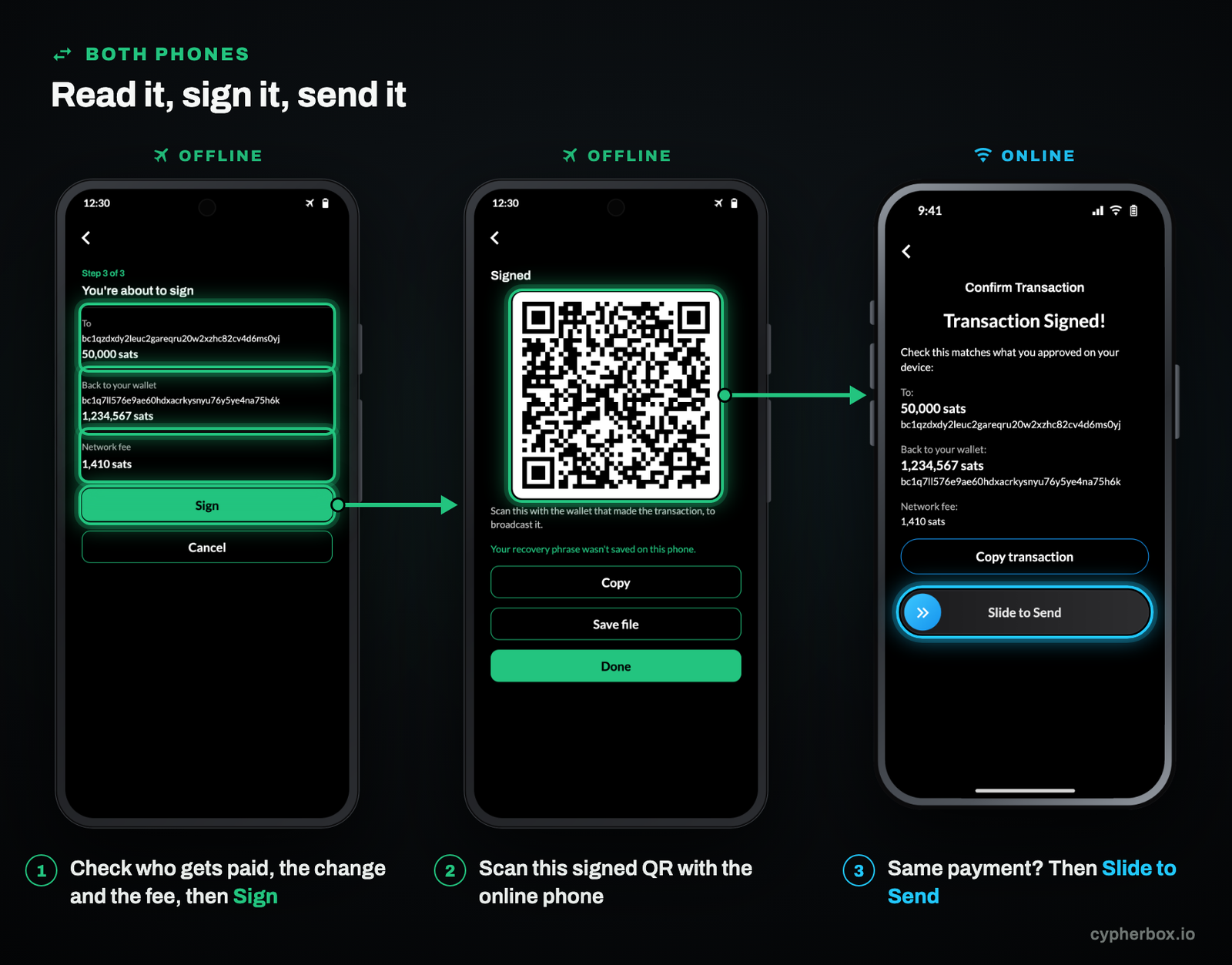
Now read what you’re about to sign: who gets paid, the change coming back to your wallet, and the network fee. If all three are right, tap Sign. The signer shows the signed payment as a QR code, and it has already forgotten your seed.
Back on the online phone, tap Next, then Scan, and scan the signed code. Cypher Box checks that it matches the payment it prepared and shows you the details again. If they match what you approved, Slide to Send.
Sending a large amount? Check the signature first
Before you scan the signed payment into the online phone, you can check it in EntropyLab on the signer. Tap Copy on the signer’s Signed screen, open EntropyLab, go to Txns and open the Nonce Inspector, paste the signed transaction, add your 12 words and passphrase, and tap Inspect Nonces. Check that the output coming back to you is marked as change, and that each signature reads Matches RFC 6979 (plain deterministic nonce). A signature made that standard, deterministic way can’t carry hidden data about your seed. Then end the EntropyLab session the same way as before.
Multisig: one key of several
The signer can also be one key of a native SegWit multisig wallet with 2 to 15 keys, tested with Sparrow and Nunchuk as the coordinator. To give your multisig app the signer’s key, tap Show a Seed’s Public Key on the signer, scan your SeedQR, and add its multisig key to your multisig app.
Once your multisig app has made the wallet, export it for a signing device, as a wallet file, BSMS file or output descriptor. On the signer, open Multisig Wallets, add the wallet by scanning its QR code or opening the file, check each key’s fingerprint against the device or app that holds that key and the first address against your multisig app, then Confirm with your SeedQR. From then on the signer signs that wallet’s transactions the same way, shows you what each one does first, and refuses multisig transactions from wallets it doesn’t have.
Can I use an iPhone as the signer?
Yes. Seed-Signer mode is in the iPhone app too, and an iPhone is a secure phone: it checks its own system software every time it starts, runs every app in a tight sandbox, and gets security updates for years.
The trade-off is that you can’t check the app itself. Apps from the App Store are encrypted for your Apple account and re-signed by Apple, so nobody can compare the Cypher Box app on an iPhone with one built from our public source code. You have to trust that the app Apple delivers was built from that code. On Android you don’t have to, as the next section shows.
A few practical differences follow from that. An iPhone has to be activated online, and Cypher Box only comes from the App Store or TestFlight, so an iPhone can’t be kept off the internet from the start, and its radios can’t be taken out. Turn Wi-Fi and Bluetooth off in Settings, because the Control Center buttons only disconnect them. The app hides your seed from the app switcher but can’t block screenshots, so never take one. EntropyLab runs on an iPhone as a Home Screen web app: open entropylab.online in Safari while the phone is still online and add it to the Home Screen, as EntropyLab’s own instructions describe. Until the App Store has the update with Seed-Signer mode, it’s only in our TestFlight beta, whose builds stop opening after 90 days, so wait for the App Store version before you make an iPhone your signer.
Check that your app is the real one (Android)
On Android you can check the Cypher Box app yourself, at two levels: that it really comes from us, and that it was built from our public code.
The signature: is it really from Cypher Box?
Every Android app is signed, and Android refuses any update that isn’t signed with the same key as the app you installed. So once your first install is the real one, nothing else can replace it. Which signature you should see depends on where you installed from.
- From Google Play, the app carries the signing key Google Play holds for Cypher Box, whose SHA-256 fingerprint is
25:5C:92:A4:55:9E:96:28:D2:97:F5:BE:EA:8B:F8:A8:7E:EF:BE:77:B5:9E:69:18:5B:DE:76:16:B6:4F:36:BA - The APK on our GitHub releases page, for people who don’t use Google Play, is signed with our upload key, whose SHA-256 fingerprint is
F0:85:82:11:0E:05:7A:F7:CA:A1:80:5A:2F:47:0D:73:12:F3:AF:6D:62:3A:A2:6A:AD:28:6C:2E:23:CE:3F:46. Each release also lists the SHA-256 of the APK file itself.
Because the two have different signatures, one can’t be installed over the other: switching means uninstalling first. To check the APK before you install it, download it on a computer that has Android’s build tools and run these two commands on it (on Windows, certutil -hashfile cypherbox.apk SHA256 replaces the first):
shasum -a 256 cypherbox.apk
apksigner verify --print-certs cypherbox.apk
The first must print the APK’s SHA-256 from the release notes, and the second must show the upload key’s fingerprint above (apksigner prints it in lower case, without the colons). To check a Google Play install, copy the app off the phone with adb and run the same apksigner check; our SECURITY.md has the exact commands.
The build: is it made from the public code?
Cypher Box’s Android builds are reproducible: anyone can rebuild a release from the published source code and get the same bytes as our reference build. For every release, our build system builds it twice, on two different machines, in a pinned build container, and fails if the two differ by a single byte. Each release on GitHub lists the source commit, a signed git tag that GitHub shows as Verified, and the SHA-256 of that reference build, so you can check out the tag and run make repro-verify (it needs Docker) to rebuild it yourself.
The app you install differs from that reference build only where two settings are compiled in: the key for our notification relay and the ID for Google Drive sign-in. The release notes list exactly which files those land in, and the build system checks that nothing else differs.
The rules, and if your signer goes missing
Keep the signer offline for good. If it ever connects to the internet, treat its seed as a hot wallet and plan to move your coins to a new seed; the app tells you the same. Keep two backups of the words and the SeedQR, in two places, with the passphrase apart from them. Update both phones on purpose: the online phone from its app store, and the signer only the offline way, with a system update from a computer over a USB cable or a checked APK on an SD card or USB stick, never by putting it back online.
If the signer is lost or stolen, there’s no seed and no private key on it to spend with. What it keeps is public: the public keys it has shown, unless you asked it to forget them, and any multisig wallet files you registered, so whoever has it could see your addresses and balance. Treat a lost signer as a warning anyway, and move your coins to a new seed.
Links
- Cypher Box on Google Play, and its GitHub releases with the APK, checksums and signed tags
- Cypher Box’s source code
- Cypher Box for iPhone: the TestFlight beta and the App Store
- EntropyLab: entropylab.online, its source code and releases, and Verify your download
- Multisig coordinators: Sparrow and Nunchuk